Get Started

Learn how to create custom images in minutes, which are on-brand and designed to meet your business needs.

Step 1.

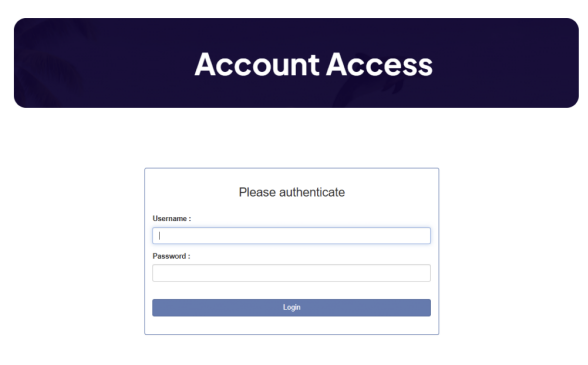
Login

  • Go to brandthat.net/access.
  • Enter your Username and Password.
  • Click Login to continue.
Step 2.

Add Action

  • Describe the scene in Add Action (what should be happening in the image).
  • Briefly describe your company in Business Overview.
  • Choose image type: Banner ad or Photo, then click Next.
Step 3.

Upload Background

  • Upload a background image that matches your location or setting.
  • Use clear, high resolution images for best results.
  • After upload shows Complete, click Next.
Step 4.

Upload Logo & Uniform

  • Upload your logo (transparent PNG recommended).
  • Upload a uniform reference photo, if available.
  • Confirm both show Upload complete, then continue.
Step 5.

Select Avatar

  • Pick an avatar that best represents your team or customer persona.
  • Choose No Watermark or Watermark.
  • Click Create image.
Step 6.

Generate Image

  • The system composites your avatar, logo, uniform, and background.
  • Use Download to save the original output.
  • Proceed to cropping if you need specific formats.
Step 7.

Select Format

  •  Use the crop tool to frame the subject for each format (e.g., 1:1, 4:5, 16:9).
  • Preview the cropped result on the right. Click "Download Cropped Image".
  • Repeat for each size you need.